
Select & Manage a Client
When several clients are running, the most important step is to make sure the correct client is selected before changing configuration.
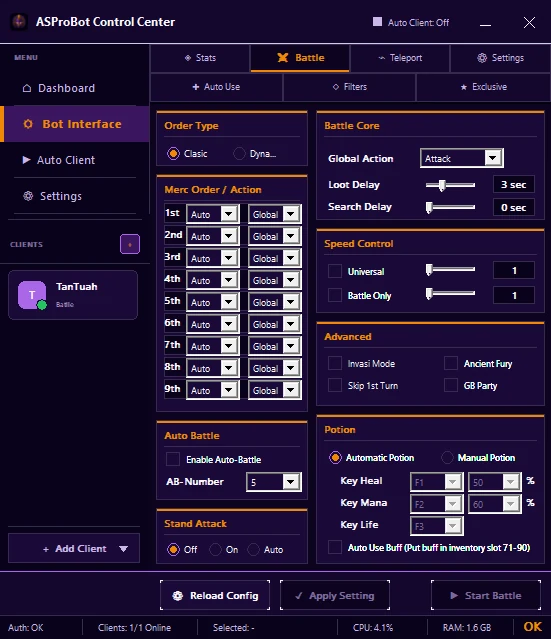
In the example above, one client is connected and the status bar shows Clients: 1/1 Online.
Select a client
- Look at the client list in the sidebar.
- Click the client you want to manage.
- Confirm that it becomes the active/selected client.
- Only then open Bot Interface or make the required changes.
The selected client becomes the target for:
- Bot Interface settings,
- feature configuration changes,
- commands sent from Control Center,
- related status and statistics.
Recommended habit
Before changing configuration:
text
Check the client name
        ↓
Confirm it is selected
        ↓
Then change the configuration
IMPORTANT
When many clients are active, do not rely only on their position in the sidebar. Check the selected name/character so settings are not applied to the wrong client.
Online does not necessarily mean selected
Online only means the client is connected.
Before changing configuration, still click the client you want to manage and make sure it becomes the active target in Control Center.
If the client appears offline
Check the client status before changing configuration.