
AO Client Paths
AO Client Paths stores the location of Atlantica.exe for each server/locale you use.
Save paths here when you want Add Client and Auto Client to find the client without selecting the executable manually every time.
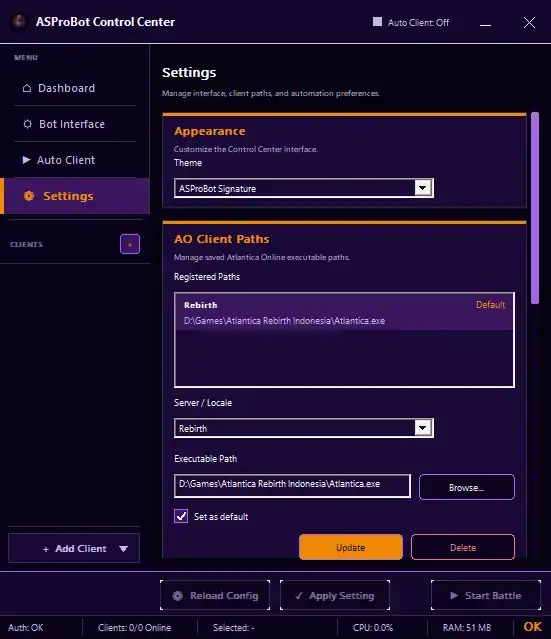
Add or update a path
- Open Settings.
- Find AO Client Paths.
- Under Server / Locale, select the matching client type.
- Under Executable Path, use Browse... to select
Atlantica.exe. - Enable Set as default if this should be the primary path.
- Click Update to save the change.
Registered Paths
Registered Paths shows the client locations that are already saved.
If you use more than one server/locale, select the correct entry before editing or deleting it.
The Default label identifies the primary path.
If everything worked
The saved path can be used when:
- opening a client with + Add Client,
- creating or running an Auto Client profile.
➡️ Add a Client
Browse manually... from Add Client
Browse manually... is different from AO Client Paths.
Use it when you only need to select an executable for the current session. It does not create a permanent saved path.
IMPORTANT
If you want the location to remain available after Control Center is restarted, save it through Settings → AO Client Paths.
Delete a path
Select the path you want to remove and click Delete.
Make sure the path is no longer required by any Auto Client profile you use.
If the client cannot be opened
Check that:
Atlantica.exestill exists at the saved location,- Server / Locale matches the client,
- the path does not point to a folder or file that was moved,
- Activity & Issues does not show a related configuration problem.
If the game folder changes, select Atlantica.exe from the new location and click Update again.