
Filters
The Filters tab controls which targets may be selected or ignored while ASProBot searches for a target.
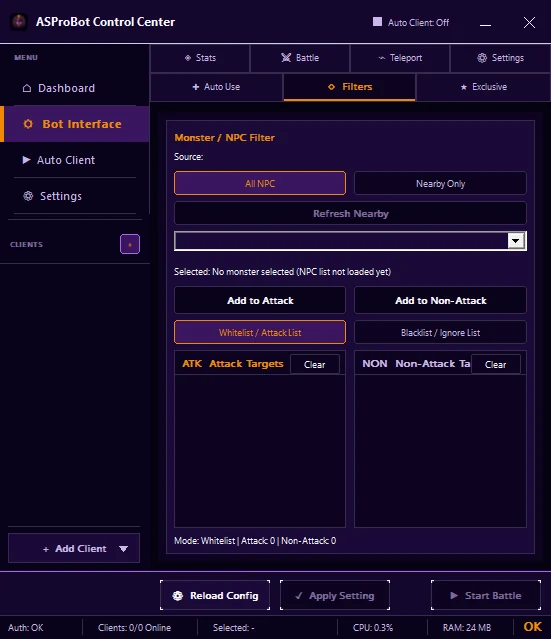
Source
Use an available target source such as:
- All NPC
- Nearby Only
Use Refresh Nearby when the nearby target list needs to be refreshed.
Add targets
- Select a target.
- Click Add to Attack if it may be selected.
- Click Add to Non-Attack if it must be ignored.
- Verify that it appears in the correct list.
Filter mode
Whitelist / Attack List
Use this when only specific targets should be selectable.
Blacklist / Ignore List
Use this when only specific targets should be ignored while other targets remain available.
If no target is found
Check:
- the active filter mode,
- the Attack list is not empty when using Whitelist,
- the desired target is not in Non-Attack,
- use Refresh Nearby when the target list is not populated,
- click Apply Setting after changes.
TIP
When troubleshooting, start with the simplest filter configuration and add rules one by one.
If you use ASProBot Launcher
The classic Launcher uses different labels and layout.