
Settings
The Settings tab in Bot Interface contains supporting settings for the currently selected client.
NOTE
This page is different from the main Settings area in Control Center, which contains Appearance, AO Client Paths, Auto Shutdown, and Update.
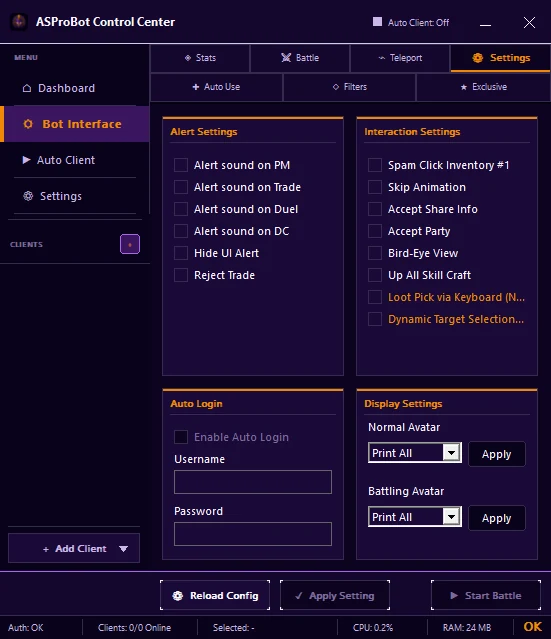
Alert Settings
Use this section to choose which conditions should trigger alerts or notifications, for example:
- PM
- Trade
- Duel
- DC
- additional alert options available in your version
Interaction Settings
Contains supporting behaviors such as:
- Spam Click Inventory #1
- Skip Animation
- Accept Share Info
- Accept Party
- Bird-Eye View
- Up All Skill Craft
Enable only what you actually need.
Auto Login
Auto Login in Bot Interface applies to the selected client's configuration.
If you want profile-based automatic login together with client recovery, use Auto Client.
Display Settings
Use Normal Avatar and Battling Avatar for the available display settings, then use the section's Apply button when required.
Apply changes
When you are done:
- verify the selected client,
- click Apply Setting at the bottom of Control Center,
- test the change on that client.
Use Reload Config when you want to reload the configuration.
If you use ASProBot Launcher
The classic Launcher Settings interface looks different from Control Center.