
Auto Client
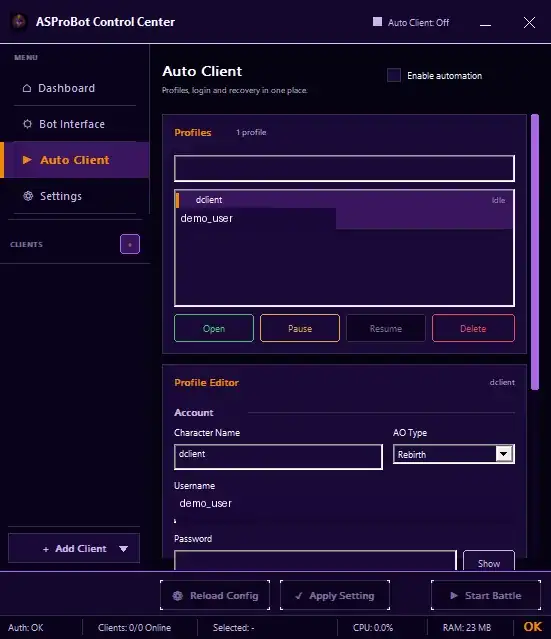
Auto Client stores client profiles and can help open clients, handle login, and recover a client after it goes offline.
It is most useful when you repeatedly use the same clients. For your first setup, make sure the client can open normally before enabling several automation options at once.
Recommended setup order
Use this order so it is easier to identify a configuration problem:
- Make sure AO Client Paths is correct.
- Open Auto Client.
- Click New and create one profile.
- Enable Enabled.
- Save the profile.
- Select the profile and click Open.
- Confirm that the client opens normally.
- Only then enable Auto Login, Recover Offline, or other behavior you need.
- Enable Enable automation when global automation should run.
Profiles section
The Profiles list shows profiles that are already saved.
Each profile can display a short summary such as character name, account, AO Type, active behavior, and current status.
Available actions include:
- Open → opens the selected profile's client.
- Pause → temporarily stops recovery/automation for the profile.
- Resume → continues a paused profile.
- Delete → removes the profile.
Behavior saved in a profile
A profile can use options such as:
- Auto Login
- Recover Offline
- Start Battle
- Auto Buff
- Universal Speed
You do not need to enable everything. Use only the behavior that client actually requires.
Enable automation
At the top of the page you will find Enable automation.
IMPORTANT
Enable automation applies only to the current Control Center session. After Control Center is closed or restarted, enable it again if you want automation to run.
Saved profiles remain available. Only the global automation switch returns to off.
Profile status
A profile status can change as work progresses, for example Idle, Online, Offline, Launching, Waiting Login, Cooldown, Failed, or Paused.
➡️ Understand Recovery and Status
If Auto Client does not work
Check these items in order:
- the profile is Enabled,
- AO Type and AO Client Path are correct,
- the profile has been saved,
- Enable automation is active when required,
- username/password are correct when using Auto Login,
- Activity & Issues does not show a client or authentication problem.
For your first test, do not enable every behavior immediately. Make sure Open works first, then add automation one option at a time.