
Auto Client Profiles
A profile stores the client identity and the behavior Auto Client should use.
Use one profile for one character/client so profiles are easy to identify and troubleshoot.
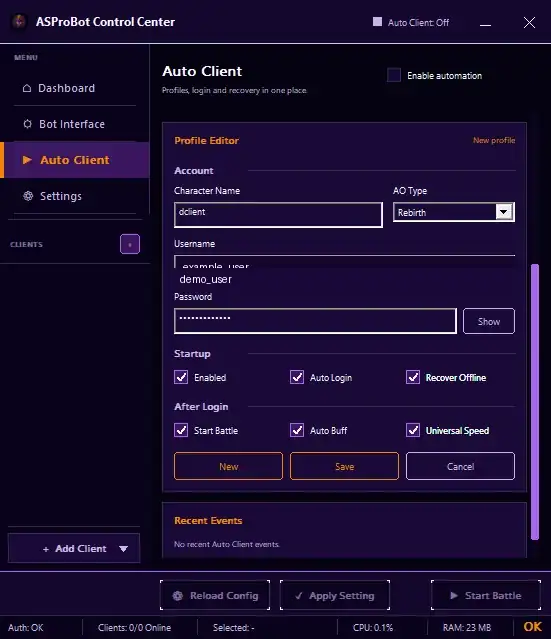
Create a new profile
- Open Auto Client.
- Click New.
- Enter Character Name.
- Select the correct AO Type.
- Enter username and password if you plan to use Auto Login.
- Enable Enabled.
- Select only the behavior you need.
- Click Save.
After it is saved, the profile appears in the Profiles section.
Account
Character Name
The character name helps you identify the profile in the list.
Use a clear and different name for each profile.
AO Type
Select the server/locale that matches the client. It must match a path saved under AO Client Paths.
Username and Password
These are used by Auto Login.
WARNING
Do not share Profile Editor screenshots that expose a real username or password. If a screenshot must be sent to support, hide the account information first.
If a password is already saved and you only want to change other settings, leave the password field empty so the existing password is kept.
Startup
Enabled
The profile must be Enabled before Auto Client can use it.
Auto Login
Enable this when the login process should continue automatically after the client opens.
Recover Offline
Enable this when Auto Client should try to reopen a client after the profile is detected offline.
After Login
Options in this section apply the selected profile behavior after login:
- Start Battle
- Auto Buff
- Universal Speed
Enable only what the client actually needs.
Edit a profile
- Select the profile under Profiles.
- Change the fields or options you need.
- Click Save.
Open a client from a profile
Select the profile and click Open.
For a new configuration, test Open before enabling recovery. This confirms that AO Type, the saved path, and the profile itself are correct.
Delete a profile
Select the correct profile and click Delete.
If the profile does not work
Check that:
- the profile is Enabled,
- AO Type is correct,
- an AO Client Path is available,
- username/password are correct when Auto Login is used,
- Enable automation is active when automatic behavior should run.
If the problem remains, open Activity & Issues and check the relevant issue.