
Update
Control Center can update two components: Control Center and Runtime.
Both are handled from the application, but their final installation steps are different.
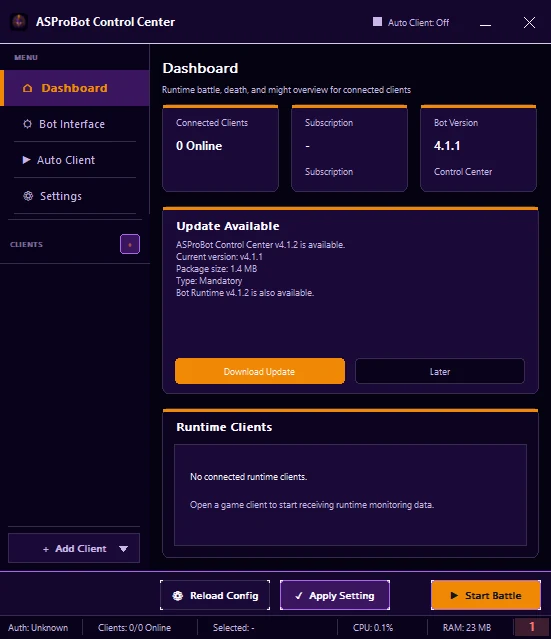
When Update Available appears
If Dashboard shows Update Available:
- review the available version,
- click Download Update when you want to update now,
- choose Later when you want to postpone it.
While the download is running, allow Control Center to complete verification and file preparation.
Control Center update
A Control Center update may go through stages such as:
- Checking for Updates
- Update Available
- Downloading Update
- Verifying / Preparing Update
- Update Ready
- Update Failed
When the status reaches Update Ready:
- make sure important work is saved,
- click Install & Restart,
- wait for Control Center to close and reopen.
Runtime update
Runtime can be updated without restarting Control Center.
Wait until download and installation finish before using actions that depend on Runtime.
If the update fails
Do not immediately download the whole application again.
Check first:
- the update status on Dashboard,
- Activity & Issues for error details,
- your internet connection,
- retry after reviewing the reported problem.
When asking for help
If the update still fails, click the related issue in Activity & Issues to copy its details, then send them to support.
Copied error codes and messages are more useful than only sending the text “Update Failed”.