
Control Center Dashboard
This page specifically explains the Dashboard in Control Center.
Dashboard is the quickest place to confirm the overall Control Center state before managing clients or opening Bot Interface.
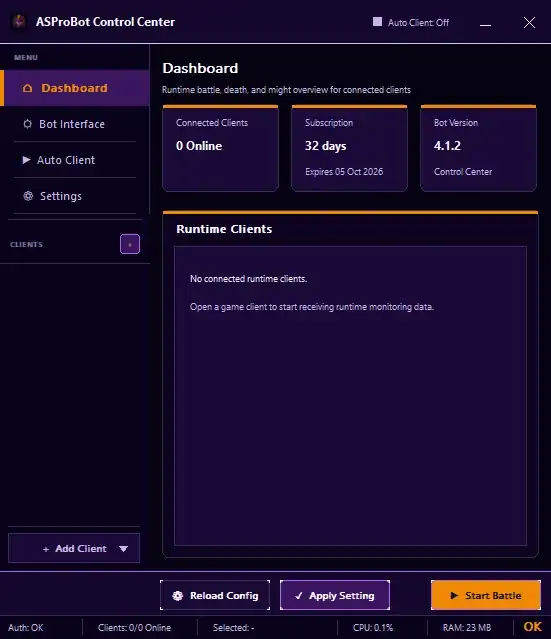
What to check
You do not need to inspect every value each time. Focus on these four areas.
Connected Clients
Shows how many clients are currently online.
For example:
- 0 Online means no client is connected yet.
- The number increases when a client is opened and successfully connected.
Subscription
Shows the remaining subscription time and expiration date.
If the value is missing or an authentication problem appears, check Activity & Issues.
Bot Version
Shows the Control Center version currently in use.
This is useful when checking whether the application is up to date or when support asks for your current version.
Runtime Clients
Shows clients connected to the Runtime and any available monitoring information.
If you see No connected runtime clients, no client is connected at that moment. This is not an error when you have not opened a client yet.
If an update is available
When a newer version is available, Dashboard may show an Update Available panel.
| Status | Meaning |
|---|---|
| Checking for Updates | Control Center is checking for a newer version. |
| Update Available | A newer version is available. |
| Downloading Update | Update files are being downloaded. |
| Preparing Update | Update files are being prepared. |
| Update Ready | The update is ready to install. |
| Update Failed | The update process did not complete successfully. |
When a Control Center update reaches Update Ready, click Install & Restart. Control Center will close and reopen to finish the installation.
Runtime updates can be installed without restarting Control Center.
Signs of a normal state
For normal use, Dashboard can generally be considered healthy when:
- the bottom status bar shows Auth: OK,
- subscription information is available,
- the Control Center version is displayed,
- clients you intentionally opened appear online.
If something looks wrong
Open Activity & Issues to see which area has a problem and copy the issue details if they need to be sent to support.