
Bot Interface
This section is specifically for Bot Interface in Control Center.
The screenshots, tab names, and actions in these guides follow the Control Center interface. If you use ASProBot Launcher with the classic interface, use Bot Interface (Classic).
Before changing any setting, make sure the correct client is selected under Clients in the sidebar.
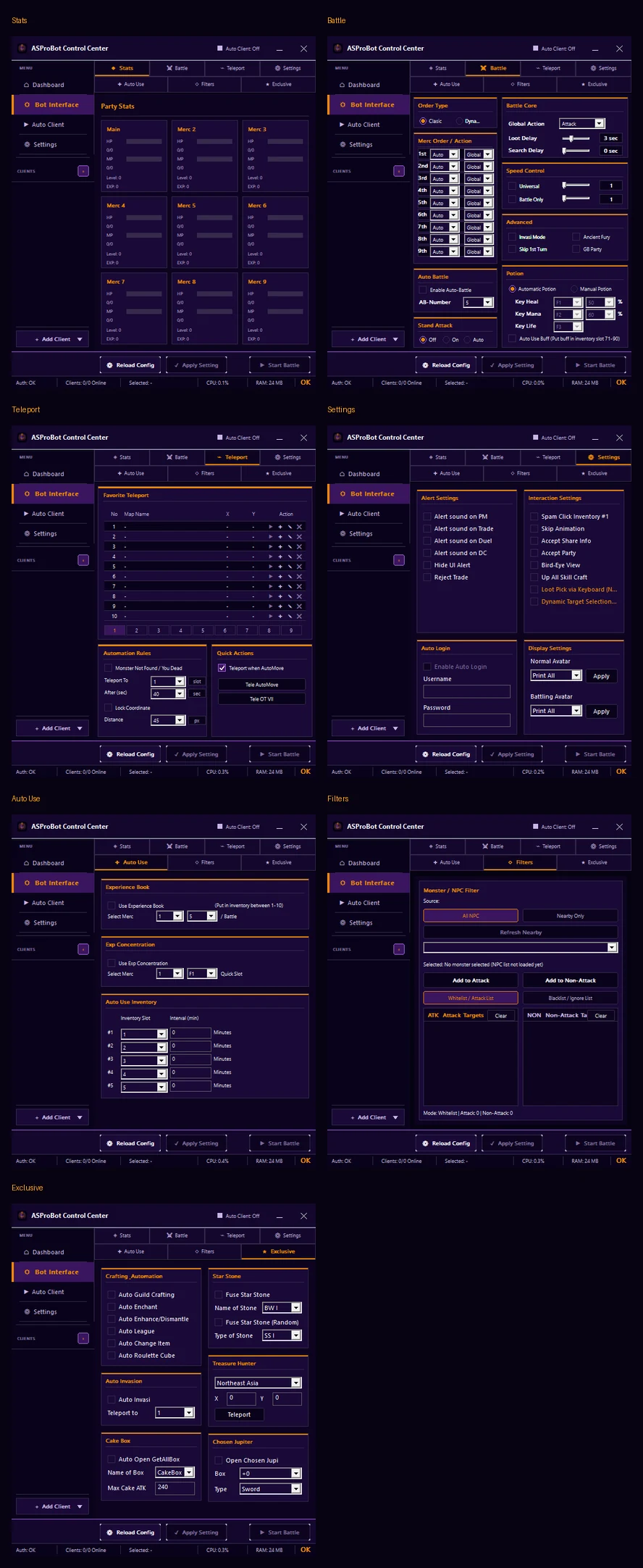
Available tabs
| Tab | Used for |
|---|---|
| Stats | View party/character information currently being read. |
| Battle | Configure actions, delays, Auto Battle, speed, Stand Attack, and Potion. |
| Teleport | Save locations and configure automatic movement. |
| Settings | Configure alerts, interactions, Auto Login, and client display. |
| Auto Use | Configure item usage by slot and interval. |
| Filters | Control which targets may be selected or ignored. |
| Exclusive | Configure additional features for specific needs. |
NOTE
In Control Center, Potion is part of the Battle tab and is not a separate tab.
Bottom actions
- Reload Config → reload the selected client's configuration.
- Apply Setting → apply changes to the selected client.
- Start Battle → start battle when the client and configuration are ready.
IMPORTANT
When several clients are active, always verify the selected client before pressing Apply Setting or Start Battle.
Simple workflow
- Select a client.
- Open Stats and confirm client data is being read.
- Configure Battle and Potion.
- Configure Filters when needed.
- Add Teleport, Auto Use, Settings, or Exclusive features as required.
- Click Apply Setting.
- Test the result on the selected client.